Showing posts with label JavaScript. Show all posts

Sunday, April 19, 2015

How to: Email your Teachers from a Form Submit

I lost about an hours worth of typing and pictures in this post, so I'm going to type up another quick version that won't be as cool.  Trust me, it was awesome.

+Ken Daniels asked me about making autoCrat (Thanks for this awesome tool, +Andrew Stillman and the New Visions School team), the awesome sheets add-on, email his teachers at his school.  I don't know his particular situation--when I set my version of this up, it was to invite teachers to a meeting based on a student's schedule.  So there was a lot of tables and looking up going on.

The easiest way is to have the user enter the email addresses into the form you are using to collect data, but I hate having users make mistakes and also having them manually look up and retype stuff that the computer should do for us.

Here's my solution:

AutoCrat will run off of a form submit now, so that's cool and that's how I'll use it here.  I like to make the form as simple as possible.  I've made a sample one that collects the teacher's name.  

You'll need a spreadsheet list of teacher email addresses to look up from and the names you get from the form submit should be exactly the same (that's another problem altogether).  Again, when I used this type of thing, there was a step in between where my form collected student data and then looked up teacher names and teacher emails based on that (student names are much less prone to errors in my experience since teachers are used to entering them exactly--or you could easily use the student id number which reduces potential for error a bunch).  Here's a sample.

In my email sheet, I've exported the complete addressbook from Outlook for my school site.  To help the look up, I've made the leftmost column into a list of the teacher names in the same format as the teacher names appear in our student database.  There's a couple ways to do that, I currently prefer the =JOIN() command until I learn a better method.

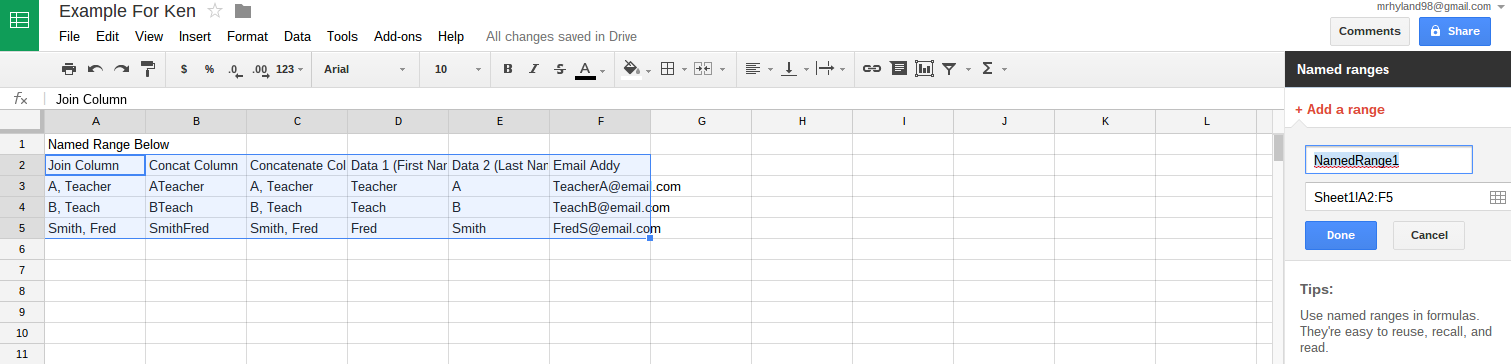
Then I made a named range from the columns.  Technically for this lookup, you only need two columns--however, you could also do this lookup from a much bigger table if you needed. The named range makes it easier to write the formula for looking up emails, and allows you to add or subtract staff members each year as people retire/get hired without having to go back and manually change every single formula.
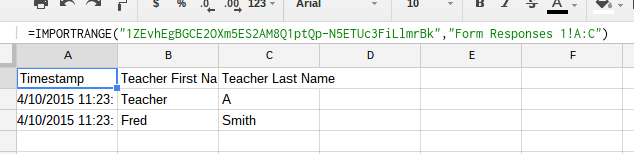
When you connect a form to the sheet, it will create a new sheet.  As each response is listed, it will erase all data in the newest row.  This means that any neat formulas you have in the response collection tab will be deleted every single time someone submits a response.  The way to deal with this that I've found has been to make another sheet and use the =IMPORTRANGE() command.  Images below.  


Once the range is imported, it will auto-update with new submissions and it will allow you to make formulas in the columns to the right of your imported data.  Now we can lookup effectively.  

After importing the range, I make a column that includes teacher name data exactly as it appears in the email lookup sheet. See the =JOIN command below.  In the next colunn, I've used a =VLOOKUP command to lookup the perfectly formatted teacher name in our named range at column 6 (where the emails are sitting).
You can look up any of these commands with the google help file and it explains pretty clearly all the options and parameters for each.

I like to wrap my formulas with =IF(ISTEXT(), my current formula, "") so that I can copy down the formula to all cells in the column and it won't display errors and #N/A and be ugly.

Getting autoCrat to email is now simple, you can have it send an email to multiple recipients or whatever you want using the dollar tags (for example: $emailAddress ) as one of the options in that add on.  each time a response is submitted, autoCrat will run and fill in the email with whatever you tell it and send to all the dynamically changing emails that pertain to your current submission.  I find this to be a little bit of extra work, but it avoids the problem of hard-coding a bunch of emails that will eventually change.
I hope this is helpful to Ken and anyone else who might need it.  I know it's a down and dirty version, and it will help if you've got a mid-level familiarity with excel/spreadsheet functions. i.e., this "guide" is not very newbie friendly, but here it is.

I know if Ken needs anymore support on it, we'll end up with a GHO and I'll attempt to record that and link it here as well if we get there.

Saturday, March 28, 2015

Batting Order Rotation

Thanks to this code that I borrowed, I was able to create a batting order rotator for my son's Tee Ball team.

You can see it in action here.

I can see how this might be useful for elementary classes that want to rotate line leader and class jobs frequently through the day etc. etc. and also possibly in high school for seating charts (although there's other programs for that--usually attached to your grade book program) or for lab work in science class and things of that nature.

It surely would have taken me 1000 years of study to get to those few lines of code in JavaScript to rotate an array (the ones in there with the % sign I think are the trick, if I understand what I'm looking at!).  I was doing it just fine in a spread sheet thanks to this video, however, pulling from a live spreadsheet and displaying on a web page was beyond my skills at the moment and seemed like too many steps.  Then I thought I could create an array pretty easily in JavaScript and it should be a sinch to essentially follow the same neat procedures from that youTube video to lookup the correct index for each new batter.


Wednesday, October 22, 2014

Case Management Documentation and GAS Part 4

I'm writing this down so I can remember why I did things the way I did when I have to go back and either fix it or make a new one somewhere else:

"The less change the better" is a simple motto for some folks. I wanted to keep the new method (my form) of getting Gen Ed feedback as similar as possible to the old method, so I kept the same wording and the same order of questions.  I simply lifted them on to a google form which will plop the answers down in a sheet that autocrat turns into a nice PDF that looks identical to the version we use now.  The output keeping the same look is only important to me so that the admin and district people who are used to seeing our forms can feel comfortable.  More important is that the "front end"--where the Gen Ed teachers look at it--looks as similar as possible.

Here's where my problem arises: I have to add some pre-filled, superfluous "questions" to the form so that autocrat will spit out the the PDFs exactly how I want them while keeping the formatting customized to each student.  Information such as student initials and case manager emails are easy for a spreadsheet to look up and calculate, however, this behind the scenes look up has to happen before the form submits to autocrat (without reworking my entire concept and workflow here).  So I will make it part of my case-manager-side script, but that means that I have about 4 extra questions hanging off the end of my Gen Ed form.

Perhaps I can find a way to make them invisible in the future, or end up reworking the entire work flow.  For now, better to make a working product before getting ahead of myself.

That's all for now.
Links:
Link to part 1
Link to previous part
Link to next part

Monday, October 13, 2014

Case Management Documentation and GAS Part 3.5

Part of being a Special Education Teacher is giving  parents progress updates on goals at least as often as their non-disabled peers.  At high school, that means once per quarter.  So doing goal updates this week and next has put my side project on break for a minute.  In spite of that, I was able to solve one small problem with my script.  I was able to get the script to take the IEP date information (from whatever the case manager puts in) and have it spit out a pretty and formatted text string (instead of a weird date code that computers read!). This solves a little problem I was having at the tail end where the printout would show a long date string including time--which I didn't want on that piece of text.

As an aside, goal updates are another beast that might benefit from some automation during certain parts of that process.  That's a long term thought I'm letting simmer and cook on the back burner.

Monday, November 11, 2013

A Week to Save 20 Minutes!

So, I have responded to feedback regarding my auto emailer (posted about earlier) by adding 4 lines of code that will automatically pull column headers from my spreadsheet.  First the code and then an explanation of what it does:

var ss = SpreadsheetApp.getActiveSpreadsheet();
  var sheet = ss.getSheets()[0];
  var headers = sheet.getSheetValues(1,1,1,-1);
  var Properties = headers[0]

Since I'm new at this Javascript thing, it's highly possible that most people could accomplish the same thing with a shorter amount of code.  Also, I'm not even sure I need the first two lines.  If I understand it (doubtful), the first line gets the active sheet--my sheet, but it could be any sheet that the code is attached to, so now I can transport the code.  The second line gets the first sheet (the little tabs at the bottom of the spreadsheet, this is the difference between a "workbook" and a "sheet" in excel)--so just in case I have content on the second sheet, my script won't get confused.  The third line makes a two dimensional array object (I'm sure that's not the right term) with content starting from the 1st row, 1st column, 1 row deep, and all the way to the last column with content ( the -1 argument says "find the last column with content).  Because it's a nested array, I had to pull out the header content by setting Properties equal to the first element of the array.

In the previous version you'll notice that I had hand-written the elements in the Properties array.  What that meant was if I changed my headers on the spreadsheet--or really, the question titles on the google form that populates the spreadsheet--my script would still send an email with the original headers.  I would have to change them all by hand.  My new code makes the script pull the headers each time automatically, so if I change them between emails, it will automatically be correct on the next email.

This became necessary when my product tester requested some new data be collected with the form.  I'm too lazy to rewrite that long list of headers (I currently have like 25 on the live form!), so instead of spending 20 minutes retyping a list, I spent the better part of a week on w3schools and google script tutorials and other javascript sites learning what I needed.  "A week to save 20 minutes!" you say, but it was a week to save a 20 minutes that will with certainty be repeated.  The unknown is how often and how many times I'll have to repeat it.

My next task will be to make the same type of change for the if, then statement that currently has a "k < 12" parameter in it.  The 12 could easily turn into 13 if I change my questions again and I want the script to know when to cut off the data table in my email.

Thursday, October 24, 2013

Creating an Automatic Emailer from a Form Submission

I'm very happy that I could impress myself and solve a little problem at the same time: Raising two kids requires large amounts of communication and more time than is in the day.  I put together a little Google Apps Script (taken mostly from tutorials and Codecademy.com) that will save me time and allow some speedy communication of important kid-facts.
The problem was simple and solvable in several low-tech ways--some less clunky than others--however, this high-tech method is transferrable to education (hence my post on this blog).

I believe I could have used something like the autocrat script to get the same result.  But the way I did it allowed me to learn some javascript code.

Here's the original problem: I have two kids, so I look after one in the morning and my wife looks after the other.  She needs to know what I took care of in the morning and at night with that kid so nothing important gets missed each day.  This is pretty complex depending on how sick or fussy or tired each child (and each parent!) is that day.  Asking single questions for each topic took up too much time.

I solved this using a google form, reachable from my phone, and a script that emails both my wife and I when I submit the form.  The email displays a simple table with information on what I did with our child that day.

Below I've attached the code. If anyone knows how to pull the headers off of a Google Sheet and turn them into an array in javascript, that would be useful (in the "Properties" variable in line 5).

This can be used in education very simply if you have a tracking form that students fill out, it can email the whole team and/or mom and dad to inform how often a student is submitting the form.  For example, if they are coming in for after school tutoring and you need to track and document that.  I can see some ways to use this type of thing for back to school night with parent meeting requests as well.  Another functionality that Google allows is to trigger the script (i.e. send the email) on a time trigger (e.g. once a day) or on edit if the spreadsheet is edited.  This could be useful for collaborative writing projects in an English class or as a summary email for a project where you are tracking some kind of form-submitted data.  Basically, anything you used paper for 15 years ago you could collect frequency data on and get an email.  I could think of how to use this type of script in a small business as well.

Autocrat is, of course, a much more robust script that could be used more flexibly.  With this project, I was able to customize it for my uses and pick fancy colors for my email, etc.  Someone with more time than me (i.e. the website club at school) could expand this short code easily and add in some graphics to support the school. That would make a pretty neat looking response email.


Here's the code:
//Thanks to this code: https://gist.github.com/anonymous/4960553
function OnSubmit(e) {
 
  var ownEmail = "your@email.com"
  var NewSubmission = {}
  var Properties = ["DateTime","Time of Day","Data1","Data2","Data3","Data4","etc."];

  for(var i in Properties){
    NewSubmission[Properties[i]] = e.values[i];
  }

  var table = "<table style=\"border:2px solid black;width:500\"><thead><tr><th colspan=\"2\">What did I do today?</th></tr></thead><tbody>";
  var j = 0;
  for(var Properties in NewSubmission){
    j=j+1;
    if (j % 2 == 0) {
      table += "<tr  style='background-color:orange'><td>" + Properties + "</td><td>" + NewSubmission[Properties] + "</td><tr>";
    } else {
      table += "<tr style='background-color:black'><td style='color:white'>" + Properties + "</td><td style='color:white'>" + NewSubmission[Properties] + "</td><tr>";
    }
  }
  table += "</tbody></table>"
  var emailText = "Oh hey there!" + "<br/>" + "Here's what we did this " + NewSubmission["Time of Day"] + ":" + "<br/>" + table + "<br/>" + "<br/>Love from FormBot"
  var advancedArgs = {htmlBody:emailText};
  MailApp.sendEmail(ownEmail, "Daily Digest",
                  "",advancedArgs);
  MailApp.sendEmail("another@email.com", "Daily Digest",
                  "",advancedArgs);
}