Tuesday, March 15, 2016

Testing something out. not working yet.

snook.ca load document

Thursday, February 11, 2016

How to: Pull a CAASPP Accommodations Query from SEIS

For my department and perhaps others who need to prepare and verify student accommodations for state CAASPP testing I have recorded here a procedure to setup a query from the Special Education Information System (SEIS) that will give all the information needed.  Once you have set up this query, you can save it for next year.

Here goes:

  • Step 1: Search -- After logging in to SEIS, find the "search for students" link on the left side-bar of your home screen (see below right). Click that link and you come to a new screen asking for "Search Filter" and "Columns to Show".  
    • Search Filter allows you to select only the names you want, which could be useful if you wanted only the 12th graders graduating or only the 11th graders potentially moving to a Transition program, etc.

Create a Query in SEIS
This could be useful.
  • Step 2: Filter -- For today's CAASPP data, I put the first filter to "Case Manager" is like "Andrew Hyland" by clicking the drop down menu and scrolling down to case manager (Marked "1" and "2" in the picture below left).  
    • Nearly every box on the IEP is listed in the drop down box in alphabetical order, so the first time you create a query there will be a lot of scrolling (don't use your touch-pad chromebook unless you have to!). 
  • Step 3: More Filter -- Another filter I used for this was to click the "Not" box and select "grade level" and use Shift+click to select all the grade levels 9 and below (Marked "3" in the picture below).
    • This was because CAASPP is done by credits, so we need to include 10th, 11th, and 12th graders from the SEIS list just incase their credits put them eligible for SBAC or the 10th grade Science test. (It's doubtful to me that 9th graders would be credit-eligible for the 10th grade Science, but it could happen.)

  • Step 4: Columns -- Anyway, now the filter is set.  Next, select what information you want to pull from SEIS.  Each drop box in the "Columns to Show" section (marked "4" above) will be a column in the report you create.  I scrolled through and picked the information I needed for CAASPP, shown below right. To add columns, simply click the green plus sign (marked "5" above).
    • Quite a bit of scrolling through options, but we only have to do it once.  The order of your choices from top to bottom ends up being the order of your data columns from left to right.  So, be careful to put things in the order you want.
  • Step 5: Save and Print -- Click "Search" at the bottom of the page and you get to the results page which previews the students and data columns you've selected.  From here you can name the query and save it as marked in the picture below. Then select print.
    • You are almost done, but I'll mention that there are some powerful options on this page. You can print only a sub-set if you don't need every name in the data (check the boxes next to the names you want to print and save some paper!) 


  • Step 6: Group and Sort -- After saving the query for next time and clicking print, the next screen asks you how you want to group and sort the data on the printed page.  For this situation, I told it to group by grade level and did not sort.  
    • If the admin. pull a large amount of data, they could group by case manager and then sort by grade level.  Or, you could sort by participation in CAASPP and it would place the kids who have accommodations on top of the list for you (otherwise it's just an alphabetical list).


  • Step 7: Print -- Just like you do for SEIS, click print and wait for the pdf to load.  Print as usual.  Repeat for next year.
Enjoy, I hope this helps and came in time for this year's testing.

Sunday, April 19, 2015

How to: Email your Teachers from a Form Submit

I lost about an hours worth of typing and pictures in this post, so I'm going to type up another quick version that won't be as cool.  Trust me, it was awesome.

+Ken Daniels asked me about making autoCrat (Thanks for this awesome tool, +Andrew Stillman and the New Visions School team), the awesome sheets add-on, email his teachers at his school.  I don't know his particular situation--when I set my version of this up, it was to invite teachers to a meeting based on a student's schedule.  So there was a lot of tables and looking up going on.

The easiest way is to have the user enter the email addresses into the form you are using to collect data, but I hate having users make mistakes and also having them manually look up and retype stuff that the computer should do for us.

Here's my solution:

AutoCrat will run off of a form submit now, so that's cool and that's how I'll use it here.  I like to make the form as simple as possible.  I've made a sample one that collects the teacher's name.  

You'll need a spreadsheet list of teacher email addresses to look up from and the names you get from the form submit should be exactly the same (that's another problem altogether).  Again, when I used this type of thing, there was a step in between where my form collected student data and then looked up teacher names and teacher emails based on that (student names are much less prone to errors in my experience since teachers are used to entering them exactly--or you could easily use the student id number which reduces potential for error a bunch).  Here's a sample.

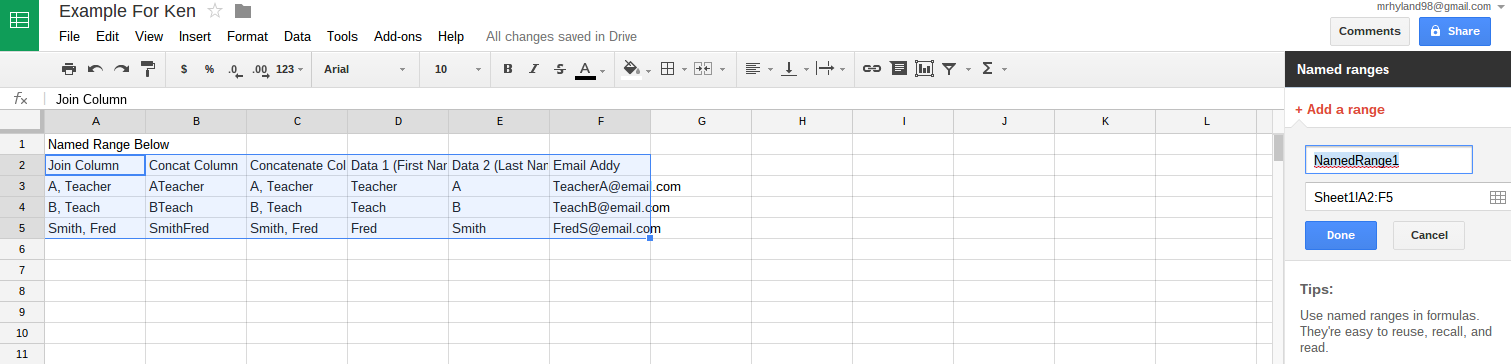
In my email sheet, I've exported the complete addressbook from Outlook for my school site.  To help the look up, I've made the leftmost column into a list of the teacher names in the same format as the teacher names appear in our student database.  There's a couple ways to do that, I currently prefer the =JOIN() command until I learn a better method.


Then I made a named range from the columns.  Technically for this lookup, you only need two columns--however, you could also do this lookup from a much bigger table if you needed. The named range makes it easier to write the formula for looking up emails, and allows you to add or subtract staff members each year as people retire/get hired without having to go back and manually change every single formula.
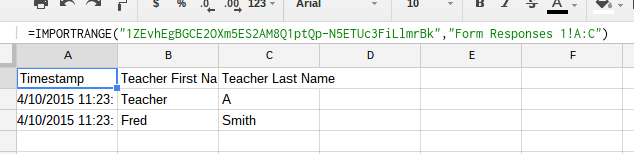
When you connect a form to the sheet, it will create a new sheet.  As each response is listed, it will erase all data in the newest row.  This means that any neat formulas you have in the response collection tab will be deleted every single time someone submits a response.  The way to deal with this that I've found has been to make another sheet and use the =IMPORTRANGE() command.  Images below.  


Once the range is imported, it will auto-update with new submissions and it will allow you to make formulas in the columns to the right of your imported data.  Now we can lookup effectively.  

After importing the range, I make a column that includes teacher name data exactly as it appears in the email lookup sheet. See the =JOIN command below.  In the next colunn, I've used a =VLOOKUP command to lookup the perfectly formatted teacher name in our named range at column 6 (where the emails are sitting).

You can look up any of these commands with the google help file and it explains pretty clearly all the options and parameters for each.

I like to wrap my formulas with =IF(ISTEXT(), my current formula, "") so that I can copy down the formula to all cells in the column and it won't display errors and #N/A and be ugly.

Getting autoCrat to email is now simple, you can have it send an email to multiple recipients or whatever you want using the dollar tags (for example: $emailAddress ) as one of the options in that add on.  each time a response is submitted, autoCrat will run and fill in the email with whatever you tell it and send to all the dynamically changing emails that pertain to your current submission.  I find this to be a little bit of extra work, but it avoids the problem of hard-coding a bunch of emails that will eventually change.
I hope this is helpful to Ken and anyone else who might need it.  I know it's a down and dirty version, and it will help if you've got a mid-level familiarity with excel/spreadsheet functions. i.e., this "guide" is not very newbie friendly, but here it is.

I know if Ken needs anymore support on it, we'll end up with a GHO and I'll attempt to record that and link it here as well if we get there.

Tuesday, March 31, 2015

VPEF Grant Thank Yous from My Class

Typing our essays on student desktop,
Chromebook, and hand written.
Earlier this school year, I applied for and was granted some generous funds for my classroom.  We were able to acquire two more Chromebook laptops to bring my class's grand total of available student computers up to seven (or sometimes eight or nine depending on the old ones working properly that day!).  In all, we have five Chromebooks now and those are nice for the students to use due to their speed and since my district set me up with google Classroom this semester.  So overall, this grant has had a large impact on my classes.
Working on a Slide Presentation for
Speaking and Listening Standards


I asked my students to write thank you notes to the Vacaville Public Education Foundation which granted the funds.  It was not lost on them what kind of impact these added computers had for our class and I'm sharing a
Part of our class writing essays.
handful of their notes here. Here's one below, and links to some more from the class.


Here are some of the projects we worked on using these computers this year:


Starting my first google Classrooms.
For the writing assignments, I was able to use google Classroom thanks to +Dawn Marsh at the district office who set up my classes as part of the pilot this semester!

Saturday, March 28, 2015

Batting Order Rotation

Thanks to this code that I borrowed, I was able to create a batting order rotator for my son's Tee Ball team.

You can see it in action here.

I can see how this might be useful for elementary classes that want to rotate line leader and class jobs frequently through the day etc. etc. and also possibly in high school for seating charts (although there's other programs for that--usually attached to your grade book program) or for lab work in science class and things of that nature.

It surely would have taken me 1000 years of study to get to those few lines of code in JavaScript to rotate an array (the ones in there with the % sign I think are the trick, if I understand what I'm looking at!).  I was doing it just fine in a spread sheet thanks to this video, however, pulling from a live spreadsheet and displaying on a web page was beyond my skills at the moment and seemed like too many steps.  Then I thought I could create an array pretty easily in JavaScript and it should be a sinch to essentially follow the same neat procedures from that youTube video to lookup the correct index for each new batter.


Thursday, March 19, 2015

Sci Fi book choices for 12th grade

About a year ago, I sent a request out for some Sci Fi books for 12th graders to read as part of their unit in short stories.  Here's a link to that post on a different blog which is worth taking a look at just for the few titles I collected in the comments. I've copied the post below:
J’s 12th grade co-teach class is going to do a unit on science fiction short stories and wanted a list of a few good ones. So I’m posting here to get some titles.
I suggested Arthur C. Clarke’s Nine Billion Names of God and Asimov’s Nightfall. I also gave some authors: Zelasny, Heinlein, L. Niven, a couple others.
Nightfall is hardly short at 300+ pages but it fits the genre in other ways.
Any other suggestions from folks?
It's that time of year again, so I've got a couple of students asking me for more suggestions. I emailed this same list to them and I'll again ask for suggestions this year so I can have a wider list every time I send it out.

Any more suggestions?  -- I guess it doesn't have to be a short story, but that is the unit even though the focus for their assignment is on the Sci Fi part, not necessarily the short story part.

Tuesday, March 17, 2015

Making Technology Run Smoothly

I'm pleased that my question via Twitter made it in to @TechsavvyEd 's #TechDirectorChat podcast segment last week!

Ben had asked for any questions from the gallery for a tech director. Being a lowly teacher and having had to deal with tech and tech departments, I know what I really wanted to ask and the way I might typically ask would not be productive for his venue.   When I find myself complaining about my classroom situations specifically, especially when I'm in professional development (or on a twitter chat), I then try to flip my negativity around and ask a question from the opposite direction.

So for my question for Ben's Director, Pete, I tweeted this:
Pretty vague and open.  Ben and Pete both took a turn giving me an answer in his podcast.  Skip ahead to 13:00 and listen to how well Pete and Ben interpret my vague wording and both give useful answers to help make working with tech in education a little less of the nightmare it can be on the worst days.

Here's the Link.

Thanks +Ben Rimes  for the shout out and the thoughtful response.

For the record, my original intent on the question was the way Pete interpreted it--making sure stuff just works correctly between version numbers, power, internet, all those moving parts.  Ben's interpretation (tech integration into lessons) and answer were what I should have been asking!

Friday, March 13, 2015

Shut off Spell Checker in Docs

This I just found and it might be useful in two or three applications: You can shut off the spell checker in Google Docs. Most people are smarter than I am, and so probably already knew that.  Here's the quote from the help page: 


Spelling suggestions as you typeAs you type, Docs automatically underlines in misspelled words in red. Right-click an underlined word to see the suggested correction and replace the misspelled word.You can turn off the spell-checker by unchecking Show spelling suggestions from the Viewdrop-down menu
Click here for the full page.

There are two times I can use this:
1) During an everyday type activity when I want students to focus on composing volumes rather than editing and fretting over perfection.
2) During California Exit Exam proctoring when a very few number of my students have "use of a word processor with the spell checker turned off" written in as an accommodation during the testing.  Then I can have them sign in to a convenient Chromebook without disrupting the other testers or having to arrange a second adult proctor to escort them to a separate place with a clunky desktop that may or may not work, or possibly has an older version of Word etc. etc.

I hope this is useful for others too.

Saturday, January 3, 2015

Wednesday, October 29, 2014

Class Poem on Padlet

Just recently, while attending the Fall CUE conference at American Canyon High School, I learned about a neat tech tool called padlet.  This website allows a teacher to create a digital posterboard for the classroom.  This way, your poster (created by you or, in this case by my students) can stay forever as part of their digital portfolio instead of disappearing from my limited wall space during the next unit.

I'm pleased to share what my class came up with today as part of our unit on Cultural Identity.

Our Class Poem

Enjoy.

Tuesday, October 28, 2014

#FallCUE Day2 Report

Well, the wifi seemed to be fixed for good and the lunch line was practically zero on Day 2, so I can give CUE and ACHS some props for at least fixing some problems quickly. Peter and I had selected our sessions late last night--we were ready to rock and our shared GDoc filled up fast with notes through the day. Next time I think I'll pick a time to have an empty session to run by all the vendors and see what's up quickly. This time we needed to maximize the info-grab. But a person can only process so much and implement so much each school year. 
Also for next time: sitting through keynotes and going to the meet ups before and after the con. 
In any case, here's what we saw and as always, notes are available upon request:

Session 6: CCSS Techie Tools
Padlet - digital posters for assessment. Don't need 1:1. I think I can use this one next semester for presentations and formative assessment. If you include an oral presentation piece it's even better. This could also be a strong tool in combination with QR codes at back to school night.
Audioboom - pod casting as class newsletter. Students write a script and record a podcast of what they've learned this week/unit. I think this was a public tool so train for your privacy needs. (No names on air, etc. )
Infuse Learning -- assessment tool much like socrative. Quite a bit of prep up front so I don't see this one on my radar until next year.

Session 7: Formative Assessment with mobile devices
Plickers and Edulastic-something as the two most reachable for me this year in public school with non 1:1
He covered a lot and they are linked in the resources. Plickers is a tool where only the teacher needs a device to use--each student (or each table group) has a paper card (which you could laminate for repeated use).  The cards are used for simple multiple choice selections, so there's a little bit of prep involved, and essentially what is happening is that your regular exit ticket or warm-up is now able to collect and display live data on who and how many in class are understanding the concept.  The teacher has a digital record immediately of each formative assessment, so that's appealing to me.  I could really use this in Special Education for IEP goal progress--the only down side is having to work around the multiple choice-style limitations.  So I wouldn't use this for every single problem each day.

Session 8: Special Education
This session was aimed at General Education teachers and getting them to use tech as a way to integrate Special Education students into the mainstream with tech as a facilitator.
An 8th grade teacher presented on student Blogging in lieu of written journaling--he said the majority of his students with special needs selected the online version and suspected it was due to not liking hand writing. Audio story problems were covered by an elementary teacher and I can see how I could use that in high school. Right now that would be a lot of extra prep for my class situation for a small number of applications. They presented a video produced by a student with autism to explain his condition. 
A nice thing about this session was that it was not focused on 1:1 and was presented by practical individuals in a situation that was closer to mine. So often I've been the only special educator in the room and even the only public school teacher in the room, or the only teacher at a school that's not going 1:1 iPads this year.

(Session 9 -- I skipped and dealt with some housekeeping issues)
Session 10: Science mobile
Since I'm co-teaching a Biology class this year, and I met Melissa Hero back at CUE Rockstar Tahoe, I had to go to this session and see what was up.  The link to her resources is where all the action is at.  By this point in the conference my entire brain was shot.  Melissa covered several websites to use for data sets in life science classes since most of the well known resources are for earth science (I didn't know this, but now I do!).  She covered several tools for elementary and for high school.  I can definitely see how to integrate the iNaturalist website/app into my class later this year. I'm definitely going to look at for next semester. 
iNaturalist.  Melissa Hero link.

Saturday, October 25, 2014

#FallCUE Day 1 Report

On the first day of #FallCUE this is what we learned:
American Canyon had insufficient bandwidth for the number of educators and their devices on campus this morning.  By the afternoon, most problems were corrected--either people had logged off or connected to their phone's hot spot. (note: this was fixed by Saturday, I never found out what the issue was)
Past that glitch in the beginning, there was much to learn.  We went to 5 sessions and burned our brains out on google forms, scripts like form Ranger, green screen videos in the classroom, using add-ons to give students feedback on their writing, building my class website and embedding videos in google forms.

I loaded up on plenty of apps, twitter people to follow, and the real winner of the day was the number of new methods for giving feedback on student writing.
I found out that google classroom is only for schools with GAFE so it's not even worth looking at until I convince someone at my school to advocate the powers that be for that situation.

Session 1 was a run down on automating your work flow with formRanger and formMule scripts (scripts by Andrew Stillman) presented by @John_Eick. Here's a link to his resources which included a step-by-step screen shot of how to set up your documents and sheets.  Very useful for a teacher who is new to this type of thing.  This was the session where the wifi was the worst and got better at every session following this.  John was a really energetic presenter and even I, a relative expert on Stillman's old scripts, learned a few tricks to use in practice.

For session 2 and following, +Peter Hyland  and I split up to hit more sessions and because he had different goals for the PD since his classroom situation with technology is vastly different than mine.  I went to John Eick's next session on embedding videos in google forms and Peter went to the Hour of Awesome.
Embedding videos looks like a sweet way to have students take notes while watching a short video, then the teacher is able to quickly look at the notes and give some feedback on the quality of notes, etc. etc.  There are about 3 uses I thought of in my classroom and the only limitation would be technology access.  Could address that by "flipping" the model" and having those that are able do the video notes at home and others do it in class.  That method would require some planning for the kids not actively taking notes in the classroom.
Peter said the Hour of Awesome was awesome and his notes make it sound exciting. Ask me for the link and I'll share the notes with you.  It covered multiple Google products and a few of the case uses for each that could speed up repetitive teacher tasks and improve the speed of student feedback.

The theme of Day 1 was faster feedback to students.  The teacher has to do a little more time consuming prep and setup on the front end, however it's worth it so kids get a faster and better idea of how they're doing with anything from writing to math to biology notes.  Session 3 with +Kristina Mattis (@KristinaMattis)for me covered some add-ons in google docs that allowed collaboration, composition, editing, and publishing of student work with more modes than just text.  Session 4 with +Cate Tolnai (@CateTolnai) showed me some template examples of how to organize my course content around my class website.  This will be most useful to me this year and next.  Finally, I visited the green screen session and got another round of figuring out how to make some videos and--even more importantly--how to use this type of project in my classes to meet standards.

Overall, an awesome day for information.  The spotty wifi and long lunch line were not enough to dampen the good things soaking in to my brain.
More reports later.


Wednesday, October 22, 2014

Case Management Documentation and GAS Part 4

I'm writing this down so I can remember why I did things the way I did when I have to go back and either fix it or make a new one somewhere else:

"The less change the better" is a simple motto for some folks. I wanted to keep the new method (my form) of getting Gen Ed feedback as similar as possible to the old method, so I kept the same wording and the same order of questions.  I simply lifted them on to a google form which will plop the answers down in a sheet that autocrat turns into a nice PDF that looks identical to the version we use now.  The output keeping the same look is only important to me so that the admin and district people who are used to seeing our forms can feel comfortable.  More important is that the "front end"--where the Gen Ed teachers look at it--looks as similar as possible.

Here's where my problem arises: I have to add some pre-filled, superfluous "questions" to the form so that autocrat will spit out the the PDFs exactly how I want them while keeping the formatting customized to each student.  Information such as student initials and case manager emails are easy for a spreadsheet to look up and calculate, however, this behind the scenes look up has to happen before the form submits to autocrat (without reworking my entire concept and workflow here).  So I will make it part of my case-manager-side script, but that means that I have about 4 extra questions hanging off the end of my Gen Ed form.

Perhaps I can find a way to make them invisible in the future, or end up reworking the entire work flow.  For now, better to make a working product before getting ahead of myself.

That's all for now.
Links:
Link to part 1
Link to previous part
Link to next part

Monday, October 13, 2014

Case Management Documentation and GAS Part 3.5

Part of being a Special Education Teacher is giving  parents progress updates on goals at least as often as their non-disabled peers.  At high school, that means once per quarter.  So doing goal updates this week and next has put my side project on break for a minute.  In spite of that, I was able to solve one small problem with my script.  I was able to get the script to take the IEP date information (from whatever the case manager puts in) and have it spit out a pretty and formatted text string (instead of a weird date code that computers read!). This solves a little problem I was having at the tail end where the printout would show a long date string including time--which I didn't want on that piece of text.

As an aside, goal updates are another beast that might benefit from some automation during certain parts of that process.  That's a long term thought I'm letting simmer and cook on the back burner.

Monday, October 6, 2014

Case Management Documentation and GAS Part 3

Well, moving forward on this project.  I now have the script getting all the values from the case manager submitted form and then looking up successfully the course schedule for the student from a second spreadsheet of schedule data that I pulled from the Aeries student database.  At some point that could be a live lookup, but for now it's dependent on a human to keep it accurate and up-to-date.

Next, it pre-fills the course info and IEP meeting information on a form for the General Education teacher to fill out and emails the teacher with a link.  When they click the link, it brings them to the feedback form already in progress with almost half the information already filled in.  No longer do they have to fill in their own class and double check the IEP date and time. (of course, at this point the IEP could get rescheduled, but that should be a separate thing on their calendar for another project at a later time!)

One item on my list is to make this Gen Ed version of the google form look slick and professional by using the school colors and logos now that Google allows us to customize their forms in that way. I'll get this pretty good looking before I show it to my Admin., but all that is cosmetic and the guts of the program currently work how their supposed to.

The next step is an Autocrat PDF creation off of my template feedback form that I created about a year ago for VHS.  I have 3 or 4 tweaks left on it at this point, until the Admin. sees it and offers changes.

At this point I want to record for posterity the methods I used to dump my spreadsheet data.  I had to go into MS Outlook and find my campus's "All Staff" email list.  Then I added all the names on that list to my contacts in Outlook.  This was in the Outlook program, not webmail like a lot of people like to use for outlook.  When all the names are in your contacts, you can export your contacts as a .csv file that will convert nicely into google sheets or excel, etc.  It has loads of empty columns that I don't use, but it has about 3 that I needed to get.  These were the account names of all the teachers and staff on campus.

All our district has the domain @vacavilleusd.org but their account names are different.  Usually it's the first name and the last initial (which I could make up with a spreadsheet function if it worked all the time).  However, sometimes there is already an "AndrewH" account and they do "AHyland" as the account.  So now I have that list from which to pull email addresses whenever I need.  I made a named range to look up in and concatenated the account name with the vacavilleusd.org domain.

I did some similar data pulls for schedule from Aeries (teacher, course, period) and special ed info (like testing accommodations and behavior plan status, dates for next IEP, etc.) from SEIS--our Special Ed Information System.  I can detail how I pulled those later so that I can replicate them next time and for any other campus and/or district that might use this idea.
Links:
Link to Part 1
Link to Previous Part
Link to Next Part

Thursday, October 2, 2014

Case Management Documentation and Google Apps Scripts Part 2

I believe I have the script completed for the first half of my project. At least, I can make the computer fetch and use all the data in question. One bump at this stage is turning out to be triggering the script in such a way that it will run completely and automatically when a form is submitted. That might be a huge task if I end up having to make half of the data lookups happen inside the script instead of inside the  spreadsheet.

In any case, the next step will be the easy part--automating the general education feedback PDF production using the autocrat add-on. 

I think a more expert programmer would spot some areas where I have clunky code in my script, but I'm making progress each day. This will be my first real work project in programming and when it works I will have something to brag about. 

Link back to Part 1 and Link to Next Part

Friday, September 26, 2014

Case Management Documentation and Google Apps Scripts (Add-ons)

Well I've begun the project for this year and I expect to be done around January 2015, although tht may be wishful thinking. If I keep the current pace for progressing through each problem, I'll be done by thanksgiving, so January seems more realistic.

I have previously built each of the pieces I'm going to need for this project, now I have to connect them all and make them talk with each other. I've been able to find some great examples of code, but for all of them I've needed to tweak to make it fit my data. 

My concept is for a special education case manager to input only four pieces of info for an IEP and have my program do the rest of the job looking up things and inviting teachers. This means making at least two databases talk to each other and probably three. For right now I'm pulling the data once a semester and using that to work with. So if something changes for a student then I have to update manually on my sheet. 

The old method is for case managers to look up a students schedule and then manually input each of six teachers names and classes twice--once for the meeting invite and once for the feedback form.  This method was varying degrees of technology away from a typing pool secretary with 5-sheet NCR paper and a highlighter. Currently we've moved up to around 1998 using a word document with fillable boxes. 

So far I've figured out how to make the computer read the form input from the case manager and pull up the next form and pre-fill the answers. Next is to make it email the URL of the prefilled form to the six correct teachers. 

This will certainly be part one of my posts on this topic.  Next Post Here
Link to part 3 -- and Link to part 3.5

Friday, August 22, 2014

Donor's Choose Project for Mr. Hyland's Class -- Update!

Exciting Opportunity! 

My Donor's Choose project, Classroom Computers for Common Core Language Arts, is eligible for a three-day-only offer from the Bill & Melinda Gates Foundation. To celebrate teachers and the amazing work we do, nearly all projects will be half-off through August 24.


Please donate if you are able, or share with people you know who might be interested in supporting my class and our students:
  • The half-off match will last for three days, starting August 22 and ending August 24 at 11:59 PM Eastern Time. To receive funding from the Bill & Melinda Gates Foundation, other donors must complete 50% of your project funding during that time.
  • Funding from the Bill & Melinda Gates Foundation isn't guaranteed.Funds will only be applied to your project if other donors complete the rest before the offer ends on August 24.
Here is a short link (also above) to my project page http://goo.gl/2hfQWo

Wednesday, June 25, 2014

Keyboard Shortcuts for Google Docs

I continually have to look these up, so I'm holding the link here on this site.
I find the help button in Docs does not have all the shortcuts I'm looking for, most notably the "insert comment" shortcut key which is "command+option+m".   Less clicking when I get my students using Docs for their writing. :)

This will become important if I ever get my next task off the ground: daily warm ups using Google Docs which should get some form of feedback (i.e. comments) from me (perhaps on a weekly basis. . .).

Link to the shortcuts

Sorry, no pics for this one.